How to Run DeepSeek Locally on Windows & Mac: Step-by-Step Guide (Free & Offline)
Complete beginner tutorial to install, configure, and run DeepSeek models locally with Ollama and Open-WebUI with zero subscription fees. #DeepSeek #LocalAI #Ollama #PrivacyFirst
Learn how to run DeepSeek locally on Windows and Mac using Ollama. Step-by-step setup guide, hardware requirements, VRAM recommendations, and offline usage.

With data privacy regulations tightening and cloud subscription costs climbing, running artificial intelligence locally on consumer hardware has shifted from a hobbyist experiment into a mainstream developer necessity. By deploying **DeepSeek models locally on your PC or Mac**, you unlock total offline privacy, zero rate limits, and unlimited token generation without spending a single dollar on monthly API subscriptions.
Local AI Setup Guide1. System Hardware Requirements & Quantization Tiers
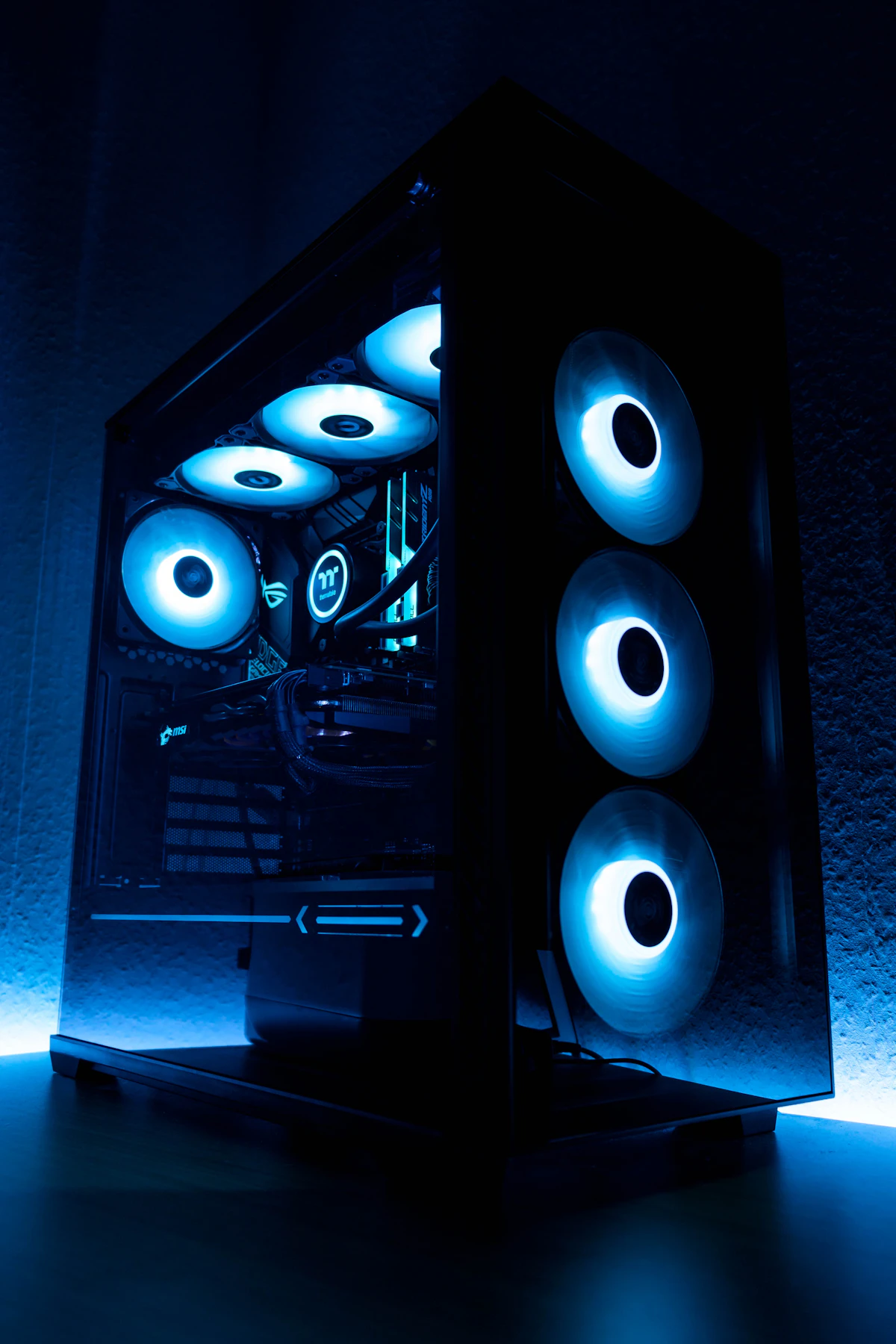
- • **Minimum Spec (DeepSeek 7B / 8B):** 16GB Unified RAM (Apple Silicon M1/M2/M3) or 8GB VRAM (Nvidia RTX 3060/4060) on Windows.
- • **Recommended Spec (DeepSeek 14B - Q4):** 32GB Unified RAM (Mac) or 16GB VRAM (RTX 4070 Ti / 4080) for fluid 35+ tokens/second.
- • **Storage:** 10GB to 25GB free NVMe SSD storage space.
- • **Operating Systems:** Windows 10/11 (with WSL2 optional) or macOS 14+ (Sonoma / Sequoia).
2. Step-by-Step Installation: 5 Minutes to First Prompt
- • **Step 1:** Download and install Ollama from the official portal (ollama.com) for Windows or macOS.
- • **Step 2:** Open Terminal or PowerShell and run `ollama run deepseek-coder-v2` or `ollama run deepseek-r1:7b`.
- • **Step 3:** The command automatically downloads the GGUF weights and initializes an interactive local console.
- • **Step 4:** For a ChatGPT-style modern web interface, install Open-WebUI via Docker (`docker run -d -p 3000:8080 --add-host=host.docker.internal:host-gateway ghcr.io/open-webui/open-webui:main`).

Frequently Asked Questions (Troubleshooting)
Yes! Once Ollama downloads the model weights to your local SSD, zero internet connection is required. All token generation, embeddings, and prompt analysis execute locally on your GPU/CPU, making it 100% air-gapped and safe for proprietary business data.
Key Themes & Trending Search Queries
- • **Target Keywords:** How to run DeepSeek locally • Run Ollama on Windows 11 • Local LLM setup guide • DeepSeek offline Mac • Best free local AI
- • **Trending Hashtags:** #LocalAI #DeepSeek #Ollama #Privacy #OpenSourceAI #MacM4 #Nvidia
The Future of Offline Sovereign Intelligence
Conclusion
Local AI is no longer a compromise. With modern 4-bit quantizations and Apple Silicon / Nvidia RTX hardware acceleration, running DeepSeek locally gives individual engineers and businesses total data sovereignty with zero recurring subscription overhead.
Share this article: